Which automation and monitoring can be carried out in PaperOffice?

Claudia Santo
Created: 22.04.2018 3:57 - Updated: 13.01.2020 8:35
In PaperOffice various monitoring systems can be set up and carried out intelligently. Windows directories, Outlook folders, POP3 mail servers, monitoring from a personalized website and personalized email address can be specified.
To add monitoring or automation of any kind, you have to go to your settings and then "Automation and Monitoring".
Now click on "Add new monitoring" and then in the selection list labeled "Select a type" to add a type of automation or monitoring.
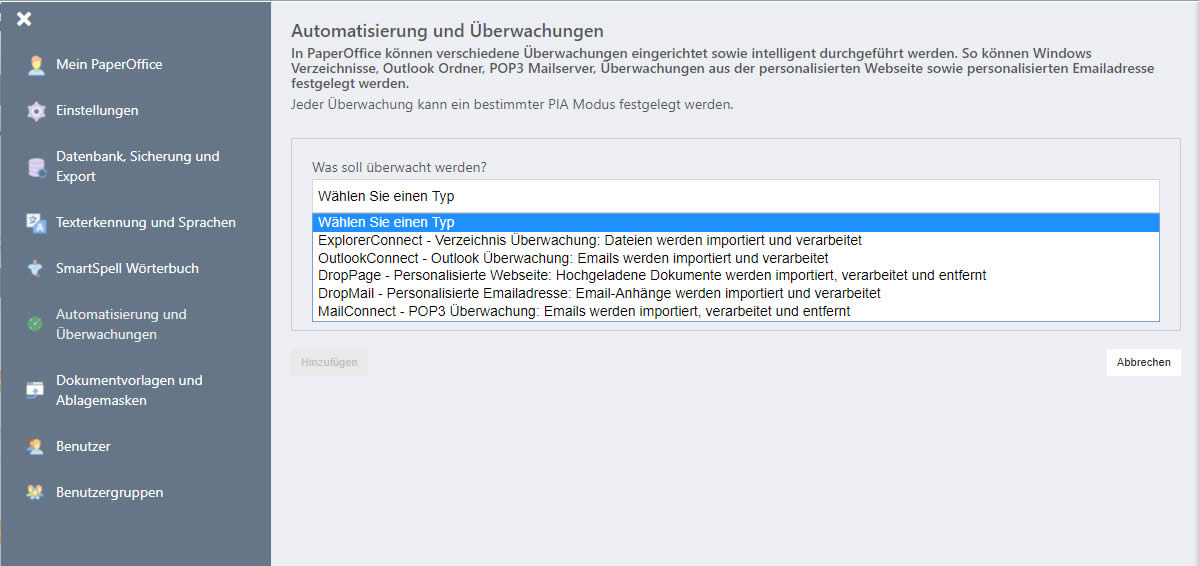
Now select a type:
ExplorerConnect: The automatic folder monitoring allows you to automatically add documents in the background and from any device (e.g. your multifunction scanner). You can find detailed instructions here .
OutlookConnect: The automatic Outlook folder monitoring allows you to automatically add documents in the background directly from any Outlook folder. You can find detailed instructions here .
DropPage: DropPage is the integrated module that allows direct document networking between your PaperOffice interface and you (or your customers) from anywhere. You can find detailed instructions here .
DropMail: With DropMail you get your personal email address, to which you can send necessary documents anytime and anywhere and thus automatically store them in PaperOffice. You can find detailed instructions here .
Overview of all automations and monitoring
After you have added an automation or monitoring, it appears in the table.
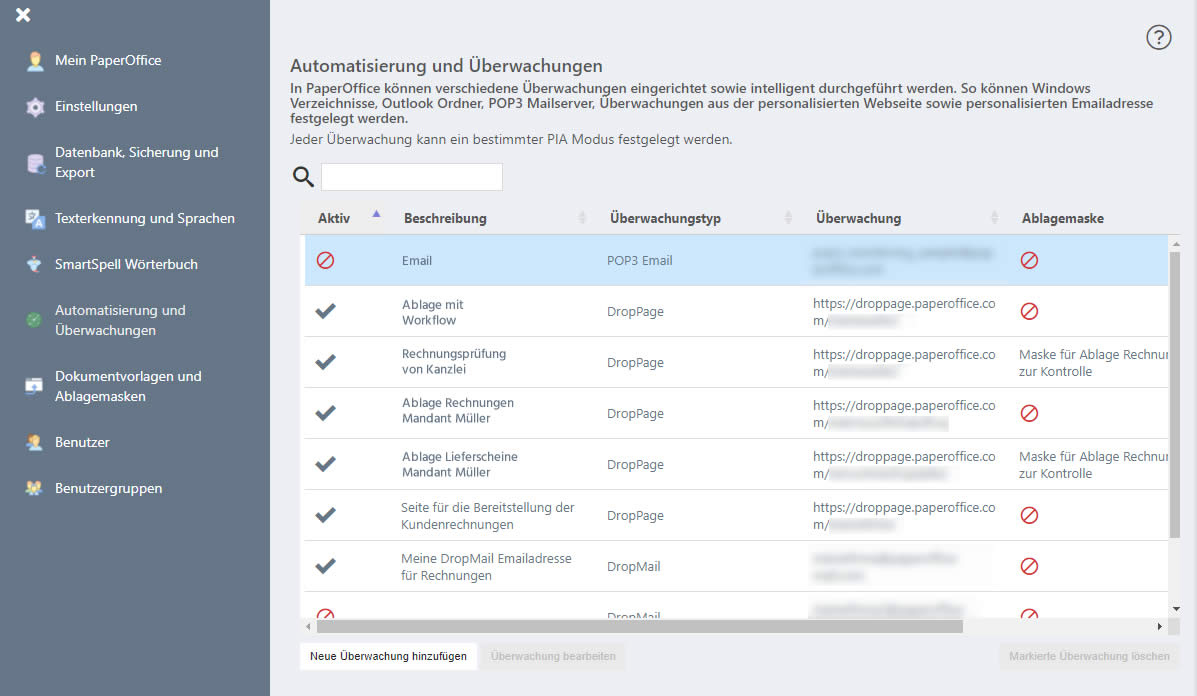
Under the "Active" tab, a symbol shows whether the monitoring is currently active. The crossed-out symbol indicates that the automation or monitoring has currently been deactivated. A check mark in turn that it is active.
To edit a monitoring, mark it in the table and then click the "Edit monitoring" button.
Accordingly, in order to remove a monitoring from the list, mark it in the table and then click the button “Delete selected monitoring”.